
From PDF to your website in six steps.
Import
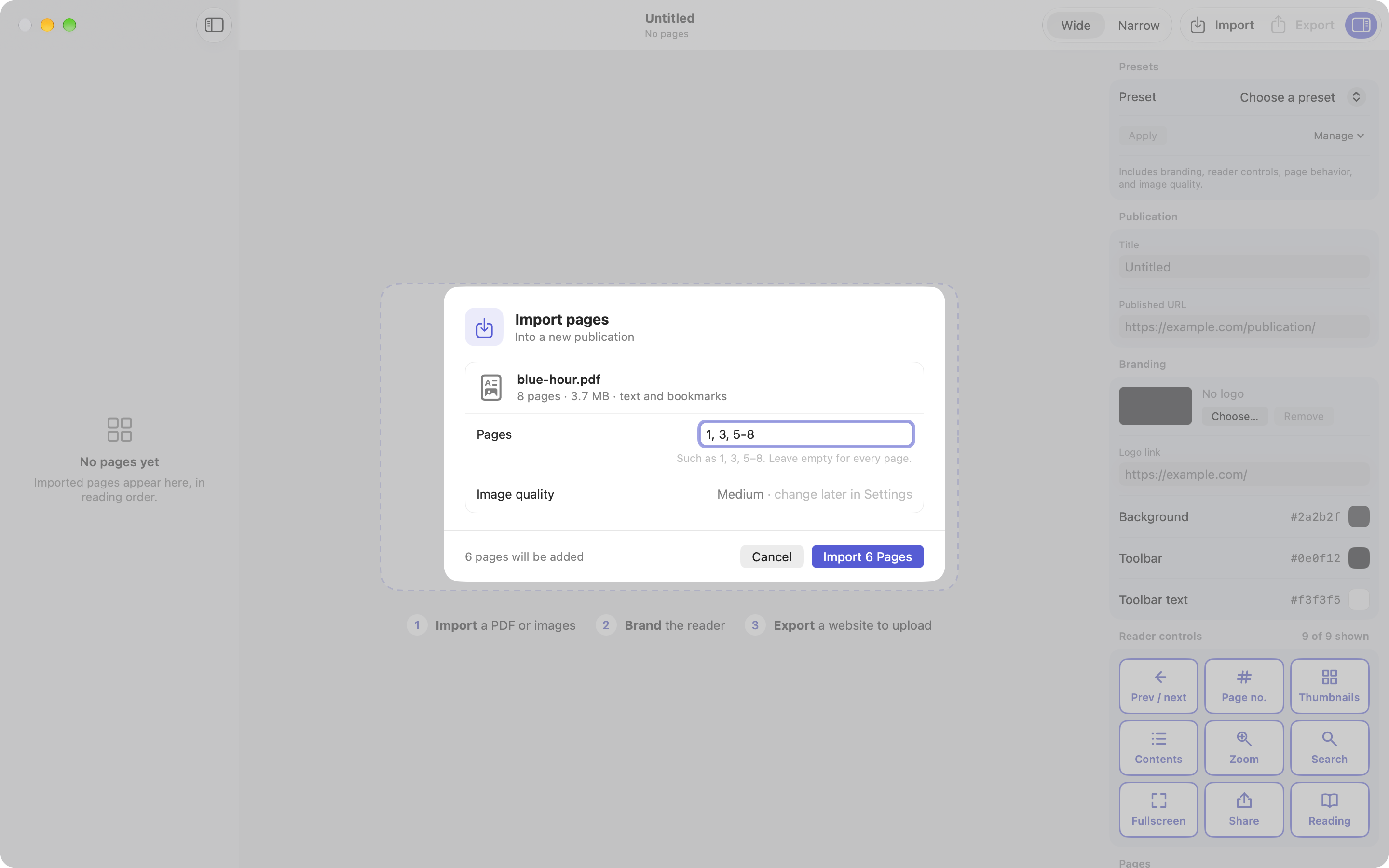
Drag a PDF or images onto the window, or click Import. Choose all pages or a range. The import report tells you how many pages, links and bookmarks were found, and whether the PDF has searchable text.
Arrange
The sidebar shows the book in spreads. Drag to reorder, press Delete to remove, and decide whether the cover stands alone. Every change can be undone.
Brand
In the settings panel, add a logo and the link it opens, pick the background and toolbar colours, and turn reader controls on or off. Save it as a preset to reuse next time.
Preview
The centre of the window is the exported reader itself. Switch between Wide and Narrow, turn pages, try search and zoom. What you see is what visitors get.
Export
Choose a folder and enter the address where the book will live. FlipTurn writes the website folder and a ZIP, and gives you the embed snippet. It asks before replacing an earlier export.
<iframe src="https://www.example.com/catalogues/october-2026/"
        title="October 2026 catalogue"
        allow="fullscreen" allowfullscreen
        style="width: 100%; aspect-ratio: 4 / 3; border: 0;"></iframe>
Upload and embed
Upload the contents of the export folder to that address over HTTPS, keeping the names as they are. Then paste the snippet into the page as HTML. A wide frame shows spreads; a narrow one shows single pages.
| Upload | What it is |
|---|---|
| index.html | The page a reader opens |
| reader.js, .css | The reader |
| publication.* | Pages, text, links and settings |
| pages/, assets/ | Page images, logo and PDF |
| NOTICES.txt | Licences — keep it with the reader |
Frame stays empty? See Support — usually a security header on the site or host.